

Setup Firebase Cloud Messaging
To make use of Gleap Push Notifications you must add the Firebase Cloud Messaging service to your app or website. Learn how to get started with FCM here.Getting your Firebase Cloud Messaging Token
Open your project in Firebase and open the project settings. Click on “Cloud Messaging” and, if it is not already enabled, activate the Firebase Cloud Messaging API (V1).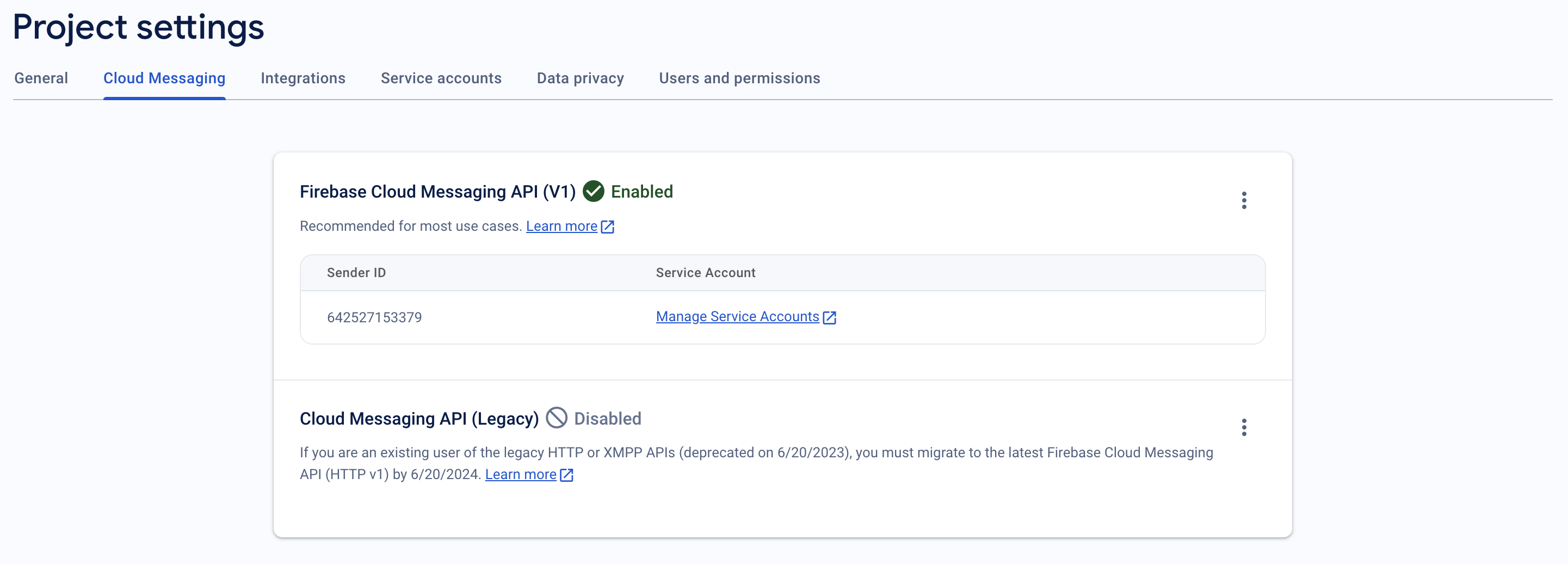
serviceAccountKey.json.
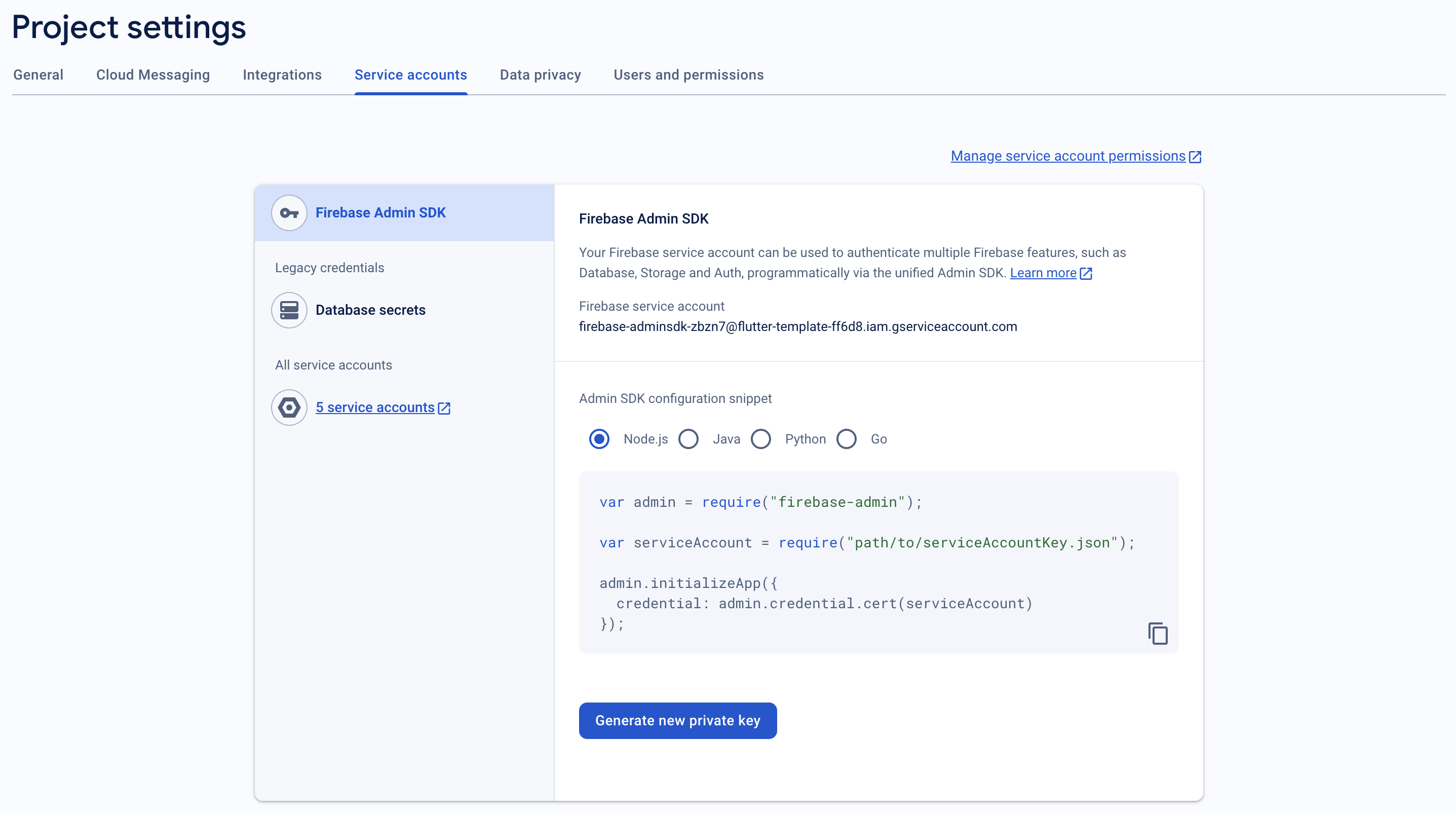
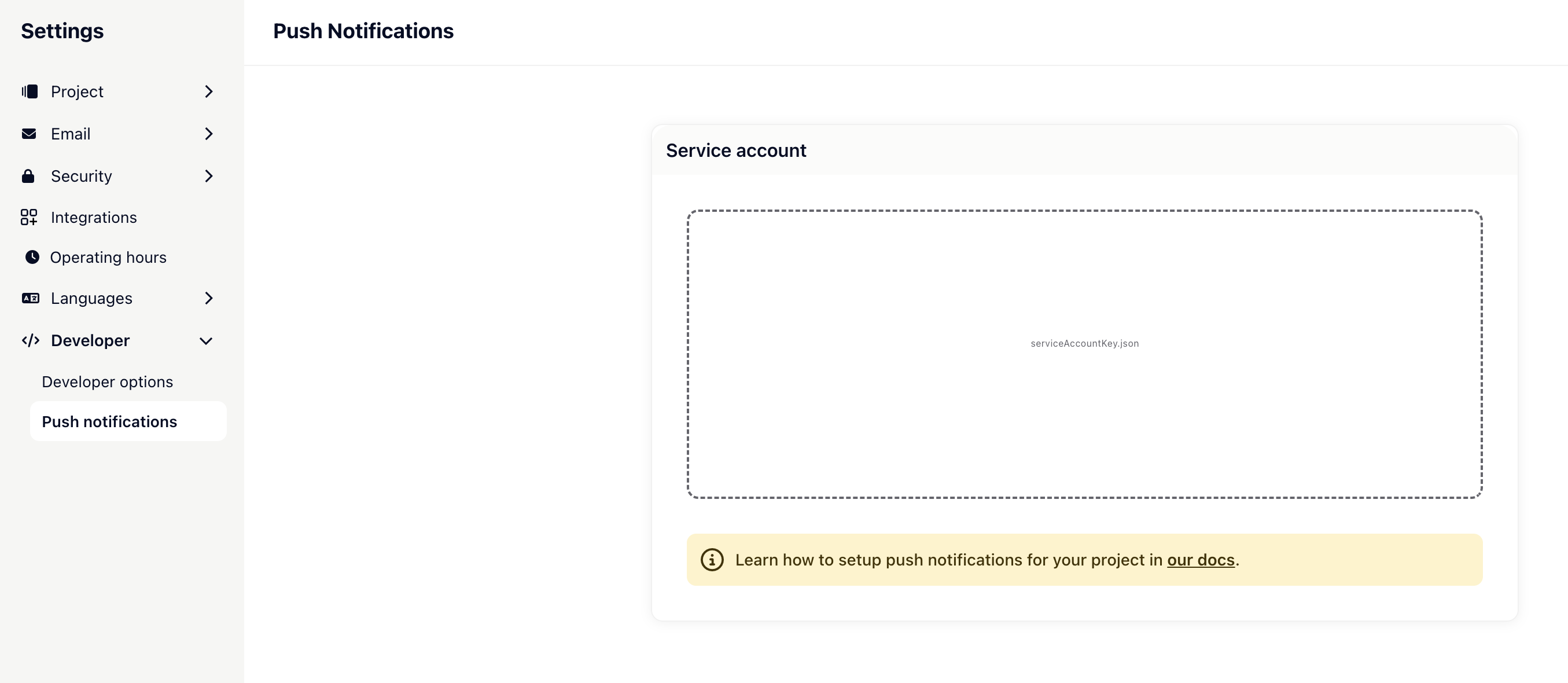
serviceAccountKey.json file. Finally, save your configuration.
Subscribe to the Gleap user topic
The last step to complete the push notification setup is to subscribe to the user topic, which Gleap will send the push notifications to. In order to do so, you will need to register the register & unregister push message topic callbacks.Handle push-notifications click
In order to open the message, the user clicked on, you will need to add some extra code to your app. The idea is to get the data from the push notification and then pass it to the SDK by utilizing handlePushNotification().Notification images
When a changelog or news article with a featured image is sent as a push notification, Gleap includes the image asnotification.image in the FCM payload. On Android, Firebase Cloud Messaging displays the image automatically when the notification is delivered while your app is in the background — no additional setup is required.