> ## Documentation Index
> Fetch the complete documentation index at: https://docs.gleap.io/llms.txt
> Use this file to discover all available pages before exploring further.
# Custom actions
We know that the built-in actions (Bug Reporting, Feature Requests, Ratings & Contact Us) might not be enough for certain use cases. For these situations we offer custom actions, which allow you to start any custom action by code.
## Configure a custom action
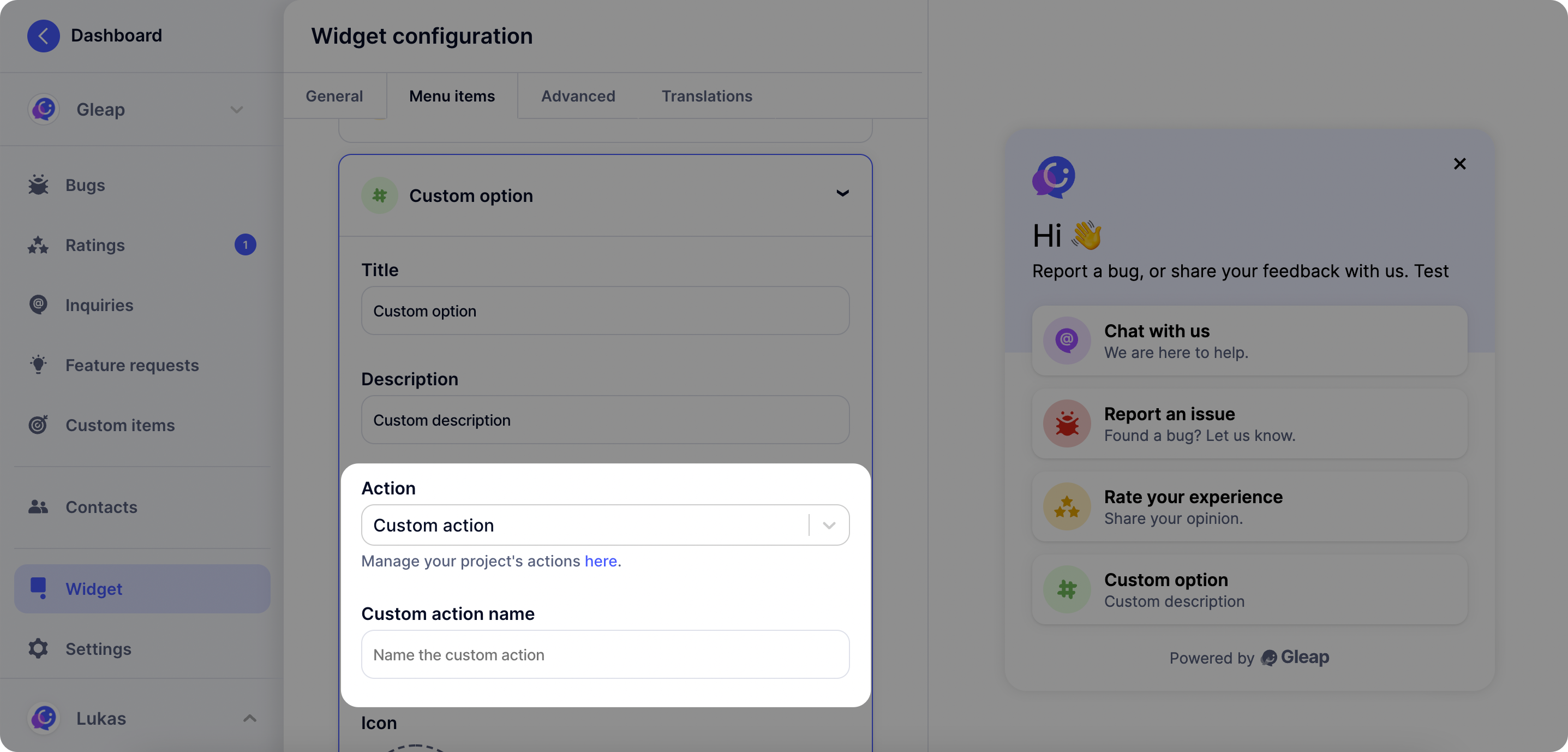
The first step with custom actions is to open the visual widget configurator and select **"Custom action"** as action type.
Now you need to **set a name for your custom action**. Choose any name you like (it's important that this name matches the name you check in the next step).
 ## Custom action callback
Once you've set a custom action in the Gleap dashboard, it is called automatically on selection through the user. In order to perform custom code, simply register a listener for the custom action.
```csharp theme={null}
Gleap.RegisterListener("customActionTriggered", data =>
{
// data contains the "name" of the triggered action (and an optional "shareToken").
});
```
The custom action **name** is defined by you in the visual widget configurator on the
Gleap dashboard.
## Custom action callback
Once you've set a custom action in the Gleap dashboard, it is called automatically on selection through the user. In order to perform custom code, simply register a listener for the custom action.
```csharp theme={null}
Gleap.RegisterListener("customActionTriggered", data =>
{
// data contains the "name" of the triggered action (and an optional "shareToken").
});
```
The custom action **name** is defined by you in the visual widget configurator on the
Gleap dashboard.