> ## Documentation Index
> Fetch the complete documentation index at: https://docs.gleap.io/llms.txt
> Use this file to discover all available pages before exploring further.
# Push notifications
Stay connected with your customers by utilizing push notifications to alert them of new chat messages, release notes, and news articles. This will deepen engagement and foster stronger relationships.
Gleap supports Firebase Cloud Messaging to send push notifications to users.
## Setup Firebase Cloud Messaging
To make use of Gleap Push Notifications you must add the Firebase Cloud Messaging service to your app or website. Learn how to get started with FCM here.
## Getting your Firebase Cloud Messaging Token
Open your project in Firebase and open the project settings.
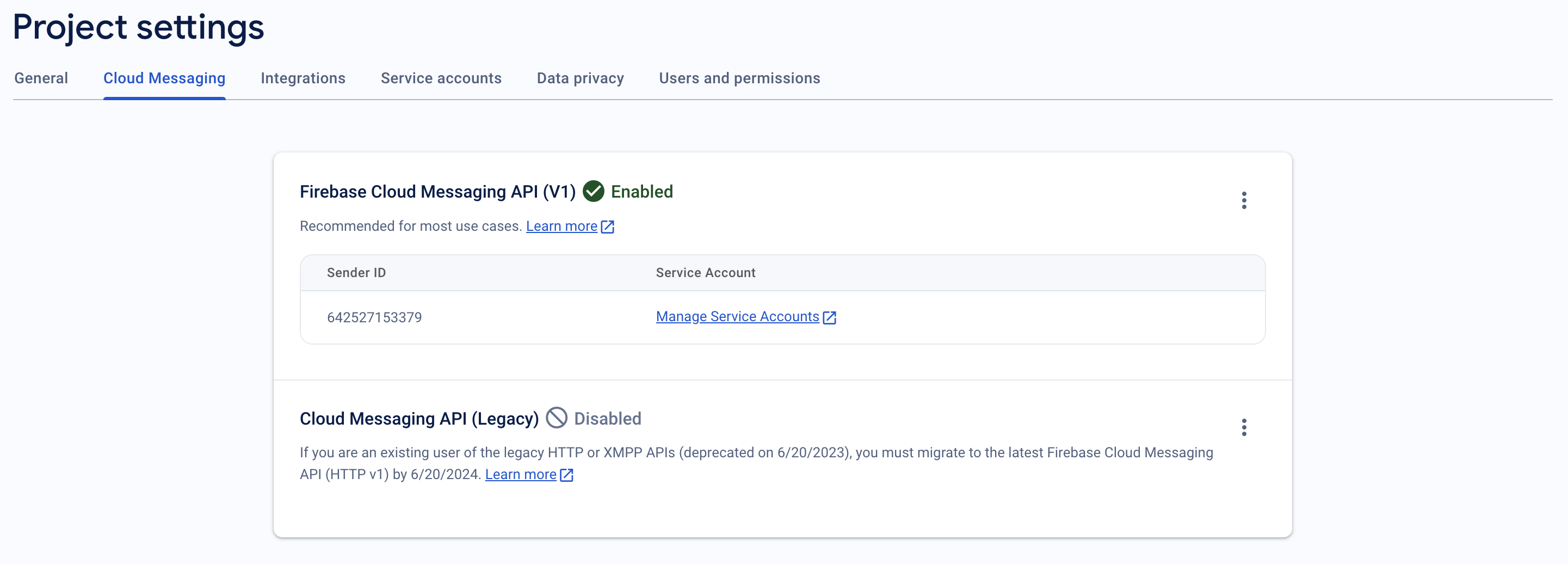
Click on "Cloud Messaging" and, if it is not already enabled, activate the Firebase Cloud Messaging API (V1).
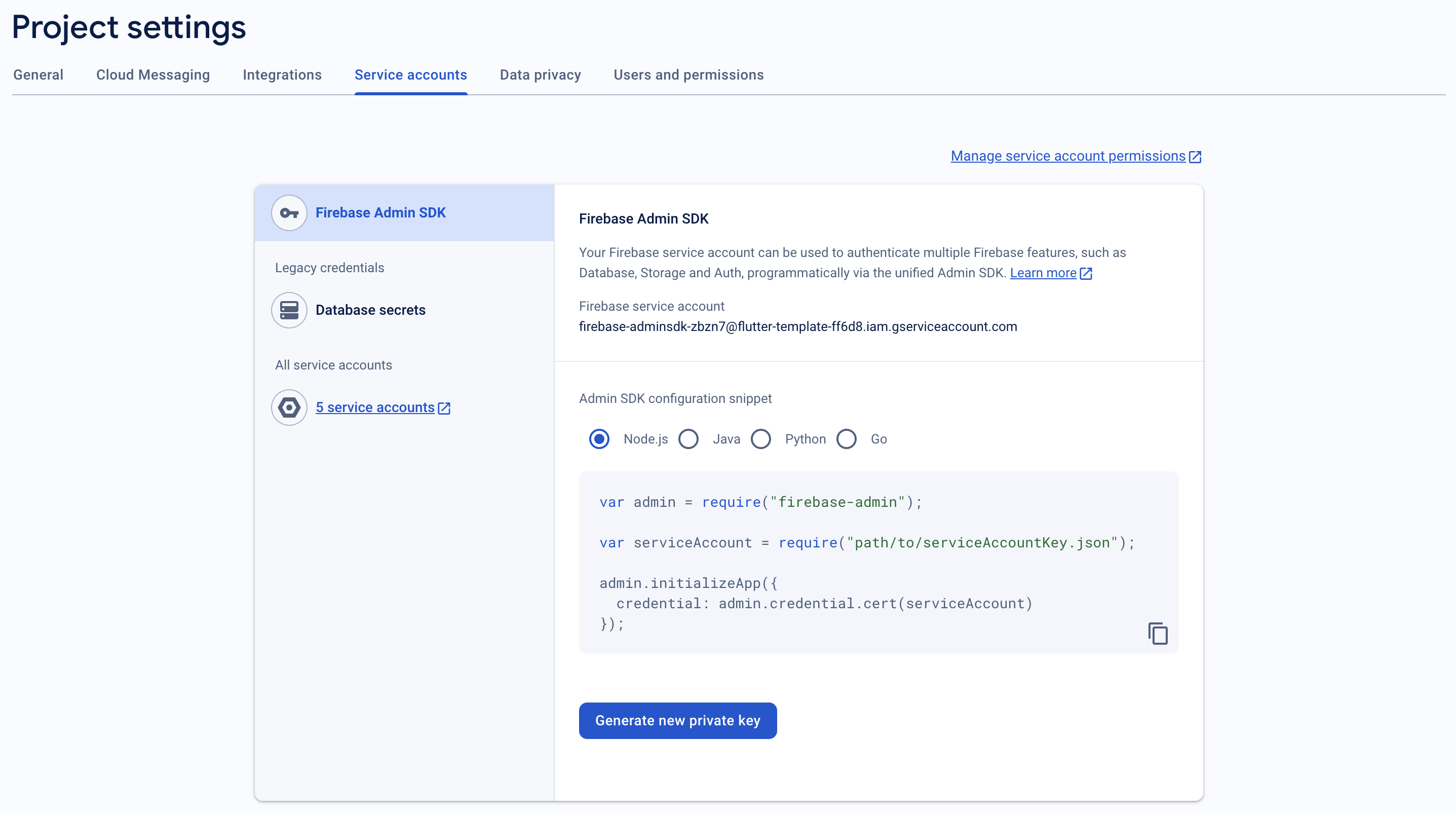
 Proceed to the "Service Accounts" section and generate a new private key, which will automatically create a file named like `serviceAccountKey.json`.
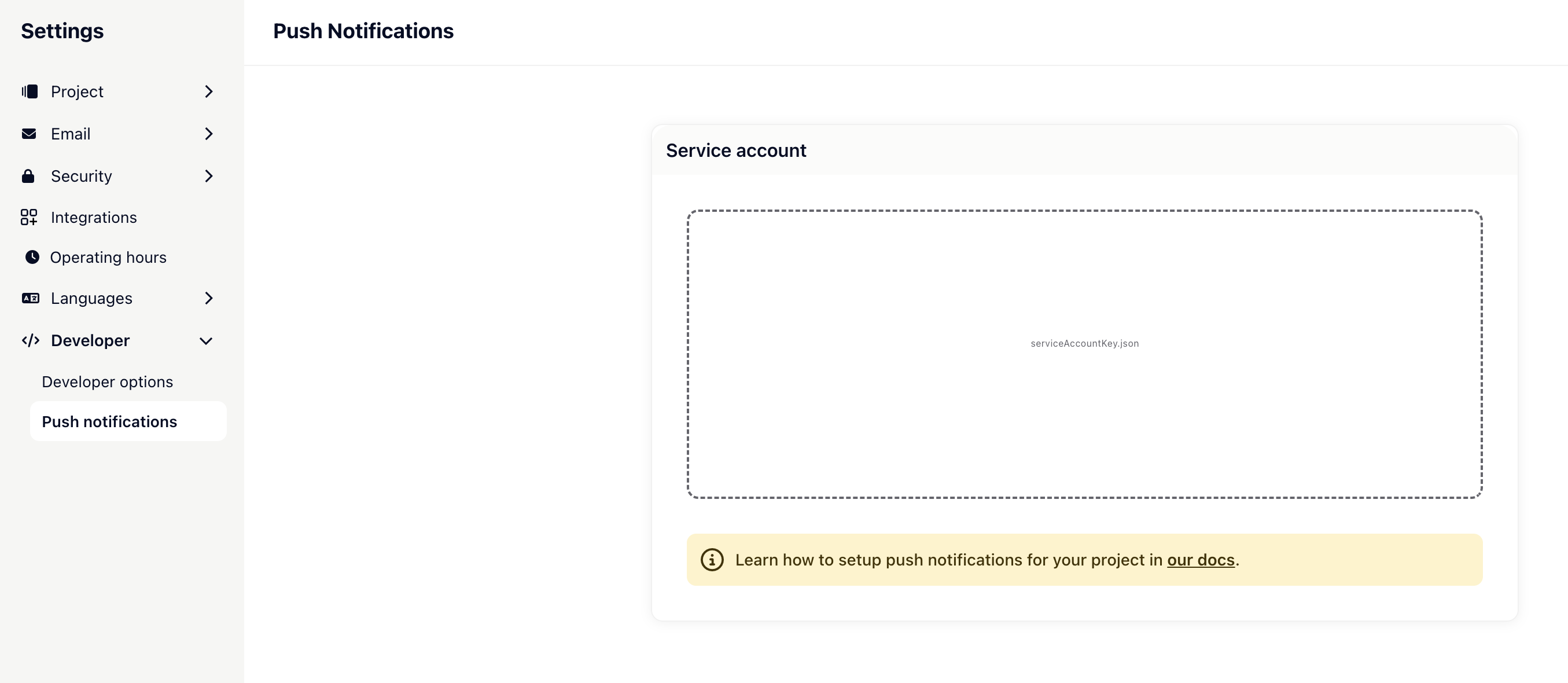
 Next, open the project settings in Gleap, select "Push Notifications", and upload the `serviceAccountKey.json` file. Finally, save your configuration.
 ## Subscribe to the Gleap user topic
The last step to complete the push notification setup is to subscribe to the user topic, which Gleap will send the push notifications to.
First, in order to proceed, it is necessary to obtain the registration token from Firebase. For more detailed information, please refer to the documentation provided by Firebase here.
```js theme={null}
const token = await getToken(messaging, {
vapidKey: "",
serviceWorkerRegistration,
});
```
Next, it is important to register the callbacks for subscribing and unsubscribing from push message topics.
```js theme={null}
Gleap.on("unregister-pushmessage-group", (topic) => {
// TODO: Send topic to your server
});
Gleap.on("register-pushmessage-group", (topic) => {
// TODO: Send topic to your server
});
```
Once you have obtained both the Firebase registration token and the Gleap topic, you should send this information to your server. On your server, you will need to subscribe the topic to the token. For more detailed information, please refer to the documentation provided by Firebase here.
```js theme={null}
firebaseAdmin.messaging().subscribeToTopic(token, topic);
```
That's it - build and run your app 🚀
## Subscribe to the Gleap user topic
The last step to complete the push notification setup is to subscribe to the user topic, which Gleap will send the push notifications to.
First, in order to proceed, it is necessary to obtain the registration token from Firebase. For more detailed information, please refer to the documentation provided by Firebase here.
```js theme={null}
const token = await getToken(messaging, {
vapidKey: "",
serviceWorkerRegistration,
});
```
Next, it is important to register the callbacks for subscribing and unsubscribing from push message topics.
```js theme={null}
Gleap.on("unregister-pushmessage-group", (topic) => {
// TODO: Send topic to your server
});
Gleap.on("register-pushmessage-group", (topic) => {
// TODO: Send topic to your server
});
```
Once you have obtained both the Firebase registration token and the Gleap topic, you should send this information to your server. On your server, you will need to subscribe the topic to the token. For more detailed information, please refer to the documentation provided by Firebase here.
```js theme={null}
firebaseAdmin.messaging().subscribeToTopic(token, topic);
```
That's it - build and run your app 🚀