> ## Documentation Index
> Fetch the complete documentation index at: https://docs.gleap.io/llms.txt
> Use this file to discover all available pages before exploring further.
# Custom actions
We know that the built in actions (Bug Reporting, Feature Requests, Ratings & Contact Us) might not be enough for certain use cases. For these situations we offer custom actions, which allow you to start any custom action by code.
## Configure a custom action
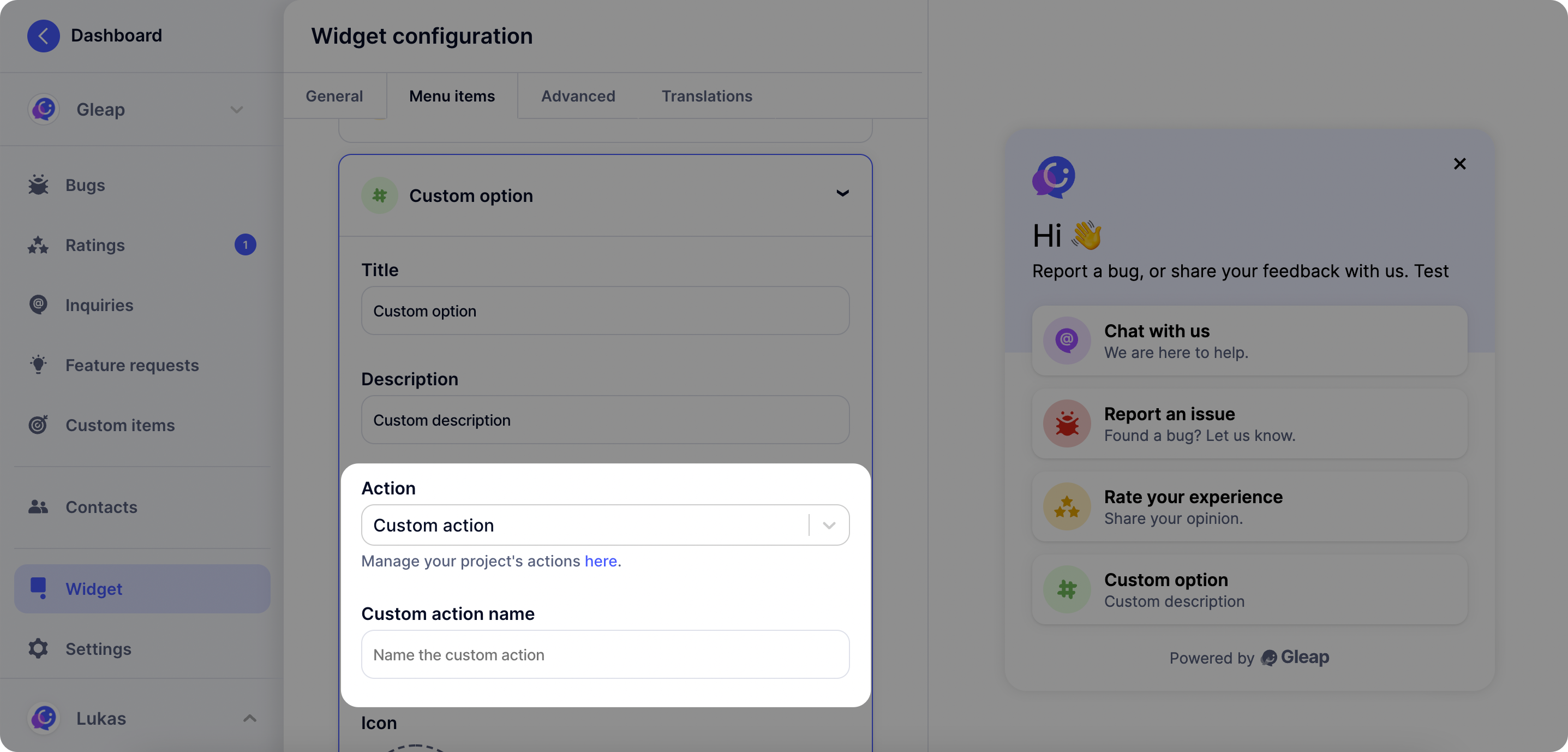
The first step with custom actions is to open the visual widget configurator and select **"Custom action"** as action type.
Now you need to **set a name for your custom action**. Choose any name you like (it's however important that this name matches the name you check in the next step).
 ## Custom action callback
Once you've set a custom action in the Gleap dashboard, it will be called automatically on selection through the user. In order to perform custom code, simply implement our `GleapDelegate` to receive the custom action events.
### Add & implement the Gleap delegate
The following code sample shows how to implement the `GleapDelegate` protocol.
```swift theme={null}
import Foundation
import UIKit
import Gleap
// Add the GleapDelegate protocol to your view controller
class DemoViewController: UIViewController, GleapDelegate {
override func viewDidLoad() {
// Assign self to the delegate
Gleap.sharedInstance().delegate = self;
}
// Add the custom action called implementation
func customActionCalled(_ customAction: String) {
if (customAction == "MAGIC_ACTION") {
print("Magic action got called.")
}
}
}
```
The **custom action name** is defined by you in the visual widget configurator
on the Gleap dashboard.
You can also retrieve the ticket shareToken in the custom action callback like below.
```swift theme={null}
import Foundation
import UIKit
import Gleap
// Add the GleapDelegate protocol to your view controller
class DemoViewController: UIViewController, GleapDelegate {
override func viewDidLoad() {
// Assign self to the delegate
Gleap.sharedInstance().delegate = self;
}
// Add the custom action called implementation
func customActionCalled(_ customAction: String, withShareToken shareToken: String?) {
// For custom actions triggered within tickets, shareToken will be set to identify the ticket.
if (customAction == "MAGIC_ACTION") {
print("Magic action got called.")
}
}
}
```
## Custom action callback
Once you've set a custom action in the Gleap dashboard, it will be called automatically on selection through the user. In order to perform custom code, simply implement our `GleapDelegate` to receive the custom action events.
### Add & implement the Gleap delegate
The following code sample shows how to implement the `GleapDelegate` protocol.
```swift theme={null}
import Foundation
import UIKit
import Gleap
// Add the GleapDelegate protocol to your view controller
class DemoViewController: UIViewController, GleapDelegate {
override func viewDidLoad() {
// Assign self to the delegate
Gleap.sharedInstance().delegate = self;
}
// Add the custom action called implementation
func customActionCalled(_ customAction: String) {
if (customAction == "MAGIC_ACTION") {
print("Magic action got called.")
}
}
}
```
The **custom action name** is defined by you in the visual widget configurator
on the Gleap dashboard.
You can also retrieve the ticket shareToken in the custom action callback like below.
```swift theme={null}
import Foundation
import UIKit
import Gleap
// Add the GleapDelegate protocol to your view controller
class DemoViewController: UIViewController, GleapDelegate {
override func viewDidLoad() {
// Assign self to the delegate
Gleap.sharedInstance().delegate = self;
}
// Add the custom action called implementation
func customActionCalled(_ customAction: String, withShareToken shareToken: String?) {
// For custom actions triggered within tickets, shareToken will be set to identify the ticket.
if (customAction == "MAGIC_ACTION") {
print("Magic action got called.")
}
}
}
```