> ## Documentation Index
> Fetch the complete documentation index at: https://docs.gleap.io/llms.txt
> Use this file to discover all available pages before exploring further.
# Introducing
The Gleap SDK for iOS is the easiest way to integrate Gleap into your apps. Communicate with your users directly and build better software by discovering their everyday pain points. Gleap is your all-in-one customer feedback tool for apps and websites.
For the SDK to work, you need an API key, which you can get for free at [app.gleap.io](https://app.gleap.io).
## 🏗 Installation
The Gleap SDK uses CocoaPods to install and manage dependencies. Open a terminal window and navigate to the root folder of your iOS project.
### Install the Gleap SDK
The Gleap SDK supports the **Swift Package Manager** and **CocoaPods**.
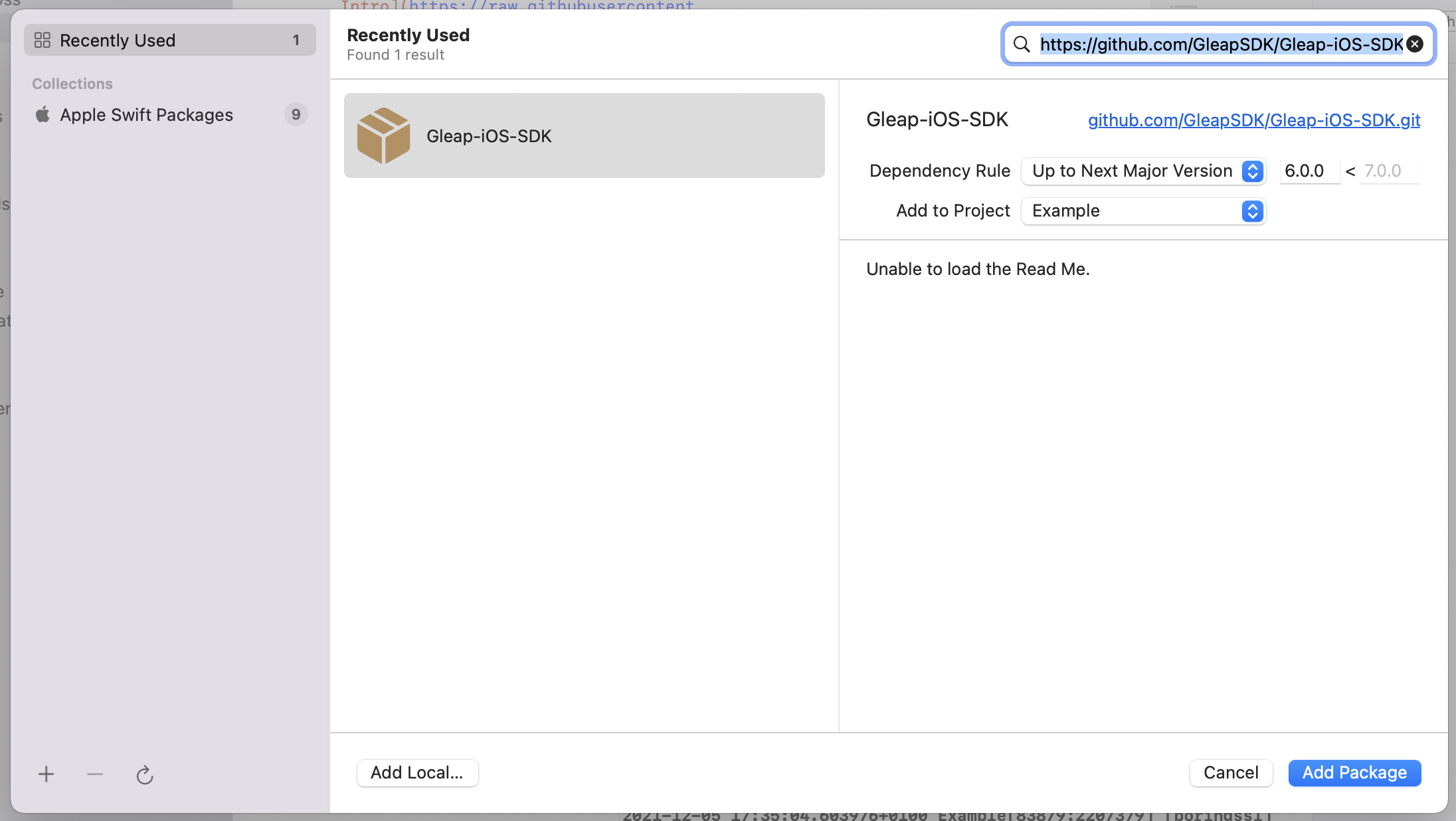
To get started, open your Xcode project and select **File** > **Add packages...**
Now you need to paste the following package URL to the search bar in the top right corner. Hit enter to confirm the search.
**Package URL:**
```js theme={null}
https://github.com/GleapSDK/Gleap-iOS-SDK
```
Now select the Gleap package and hit **Add package** to add the Gleap SDK to your project.
 #### Create a [Podfile](https://guides.cocoapods.org/using/the-podfile.html), and add your dependencies:
```
pod 'Gleap', '>= 16.4.0'
```
####
#### Save the file and run the following command.
```
pod install
```
These steps create a .xcworkspace file for your app. Make sure to open this file for further developments on your application.
### Initialize the SDK
Open your project in XCode and navigate to your **app delegate** or main **App class** when using SwiftUI.
#### Import the Gleap SDK
Add the following import under your other imports.
```swift theme={null}
import Gleap
```
```objectivec theme={null}
// When using Swift Package Manager
@import Gleap
// When using CocoaPods
#import
```
### Initialize the SDK
The last step is to initialize & configure the Gleap SDK by adding the following code to the end of your *applicationDidFinishLaunchingWithOptions* delegate or *init()* method of your main app (SwiftUI).
```swift theme={null}
Gleap.initialize(withToken: "API-TOKEN")
```
```objectivec theme={null}
[Gleap initializeWithToken: @"API-TOKEN"];
```
Congratulations 🎉 You are now all set 👋
## Required permissions
In order to use the image picker for attachments, add the following permissions to your `Info.plist`.
```
NSPhotoLibraryUsageDescription We need access to your photo library to allow you to select an image.
NSCameraUsageDescription We need access to your camera to take photos.
```
The following permissions are needed to enable audio recordings.
```
NSMicrophoneUsageDescription We need access to your microphone to record audio with videos.
```
## 🤝 Need help?
We are here to help! [hello@gleap.io](mailto:hello@gleap.io)
#### Create a [Podfile](https://guides.cocoapods.org/using/the-podfile.html), and add your dependencies:
```
pod 'Gleap', '>= 16.4.0'
```
####
#### Save the file and run the following command.
```
pod install
```
These steps create a .xcworkspace file for your app. Make sure to open this file for further developments on your application.
### Initialize the SDK
Open your project in XCode and navigate to your **app delegate** or main **App class** when using SwiftUI.
#### Import the Gleap SDK
Add the following import under your other imports.
```swift theme={null}
import Gleap
```
```objectivec theme={null}
// When using Swift Package Manager
@import Gleap
// When using CocoaPods
#import
```
### Initialize the SDK
The last step is to initialize & configure the Gleap SDK by adding the following code to the end of your *applicationDidFinishLaunchingWithOptions* delegate or *init()* method of your main app (SwiftUI).
```swift theme={null}
Gleap.initialize(withToken: "API-TOKEN")
```
```objectivec theme={null}
[Gleap initializeWithToken: @"API-TOKEN"];
```
Congratulations 🎉 You are now all set 👋
## Required permissions
In order to use the image picker for attachments, add the following permissions to your `Info.plist`.
```
NSPhotoLibraryUsageDescription We need access to your photo library to allow you to select an image.
NSCameraUsageDescription We need access to your camera to take photos.
```
The following permissions are needed to enable audio recordings.
```
NSMicrophoneUsageDescription We need access to your microphone to record audio with videos.
```
## 🤝 Need help?
We are here to help! [hello@gleap.io](mailto:hello@gleap.io)